User guide
How to use Still Dark
This guide goes through the app one screen at a time. Start with the quick start, or jump to the tool you need. All the screenshots are from the app.
Quick start
You'll use three screens most nights. Allow location when asked, because every time and direction in the app depends on where you are.
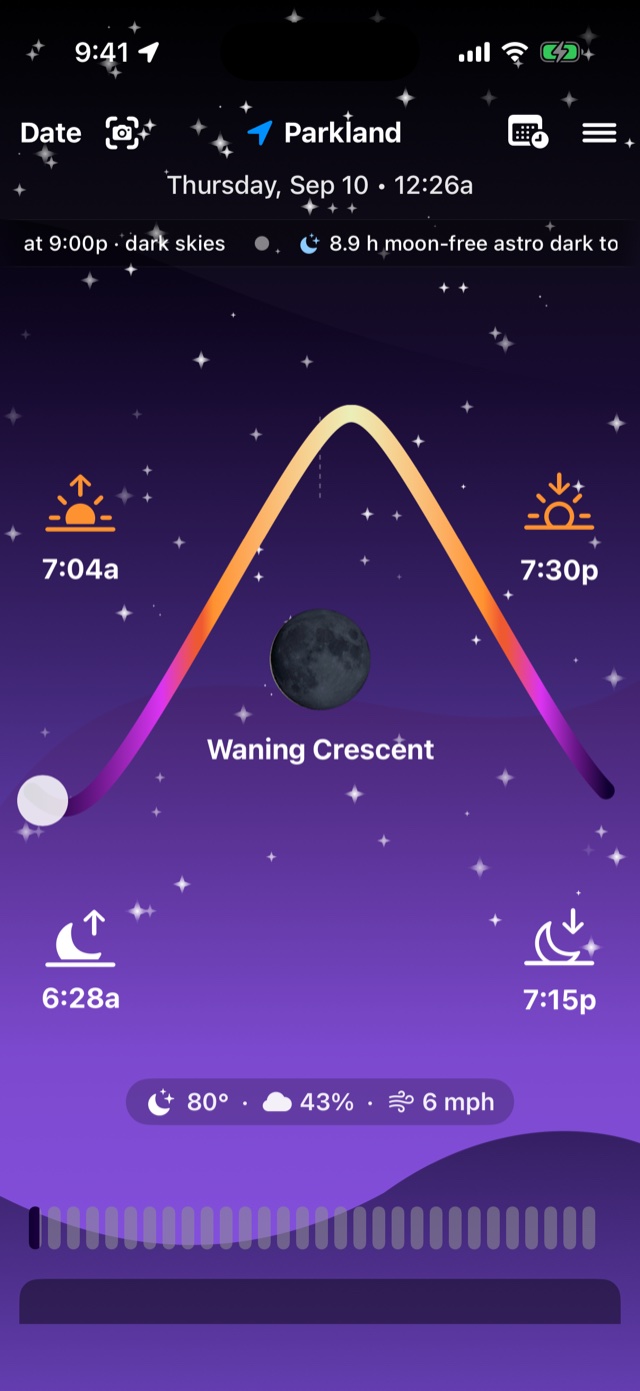
The home screen shows tonight
It has the Sun's arc for today, sunrise and sunset, moonrise and moonset, the Moon's phase and the weather. Scroll down for the cards. Drag the timeline at the bottom to move through the day.
The 360° sky shows what's overhead
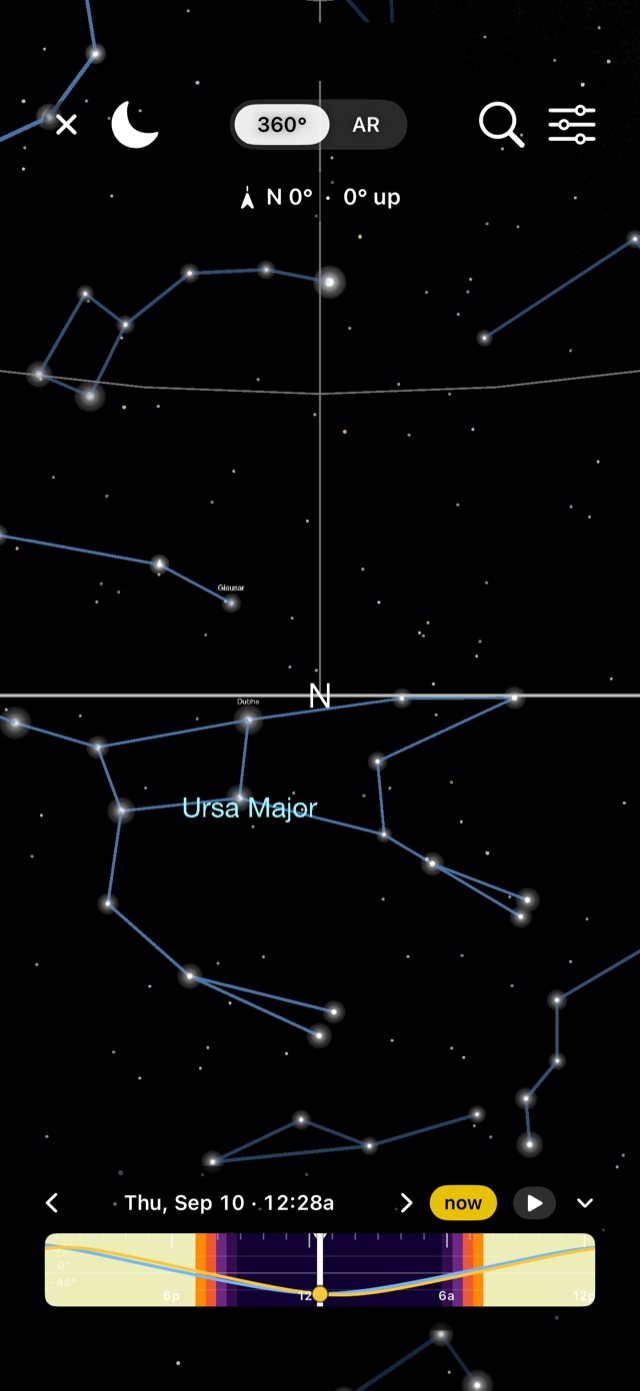
Tap the sky icon in the top bar. Drag to look around, pinch to zoom, tap any object for its readout. On iPhone, switch to AR and hold the phone up.
The Planner works for any place and date
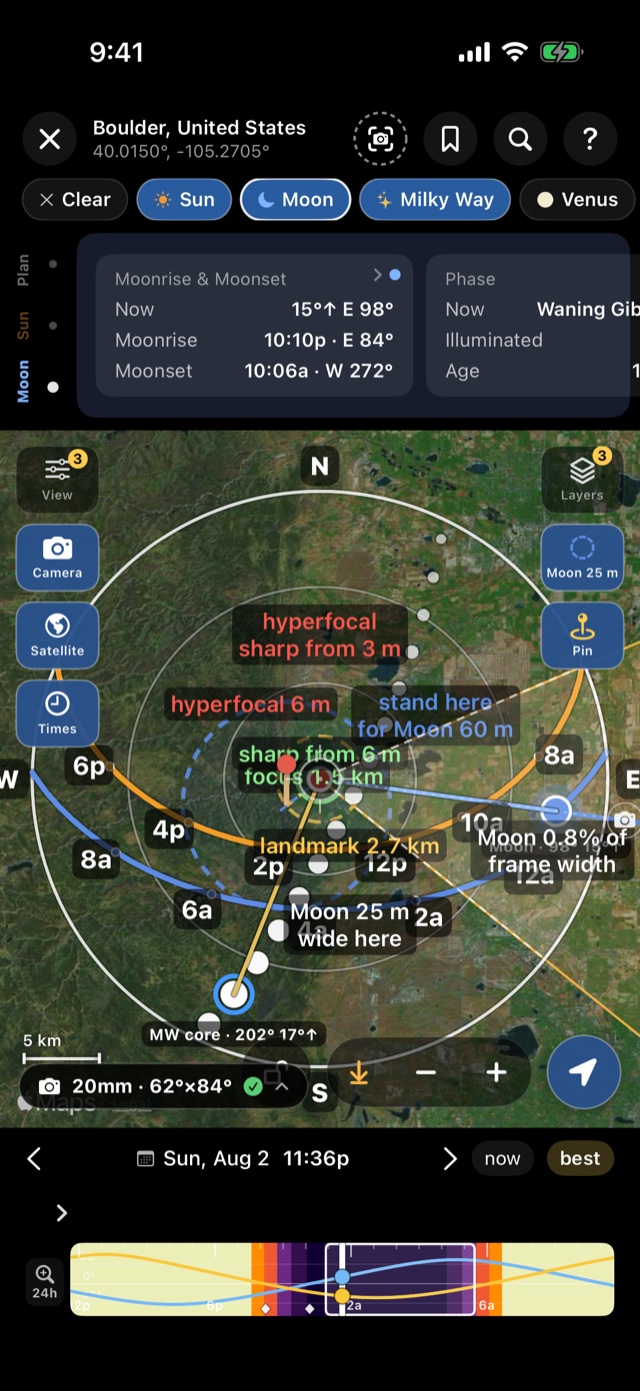
Tap the calendar icon. Move the map, set the date and choose a subject chip (Sun, Moon, Milky Way, a planet). The paths are drawn on the map. Turn on Camera to see your field of view.
What do you want to do?
Find what you want to do in the table. It shows where that is in the app.
| I want to… | Go to |
|---|---|
| Know sunrise, sunset, golden and blue hour today | Home · Photography Hours card |
| See what that bright "star" is | 360° sky → AR, or tap it in 360° |
| Plan a Milky Way shot next month | Milky Way nights → tap a night → Planner |
| Put a big Moon behind a building | Planner → Moon chip → Camera · the guide |
| Catch the ISS tonight | Sky events → Satellites |
| Check whether it'll be clear | Weather card (Pro) |
| Know if there'll be aurora | Aurora card. It appears on its own when there's a chance |
| Get a reminder before an event | Plans & reminders |
Home screen
Top bar, left to right: Date (tap to pick another day, and it turns amber when it isn't today), the sky icon (360°/AR), your location (tap to search a city or place), the Planner icon, and the menu.
Under the date line runs the sky ticker. The big panel is the Sun's path for the day: sunrise and sunset at the ends, the Moon and its phase in the middle, moonrise and moonset below, then tonight's weather pill. The bar at the very bottom is the time scrubber. Drag it to see the sky at another hour. It goes back to now after 30 seconds.
Cards
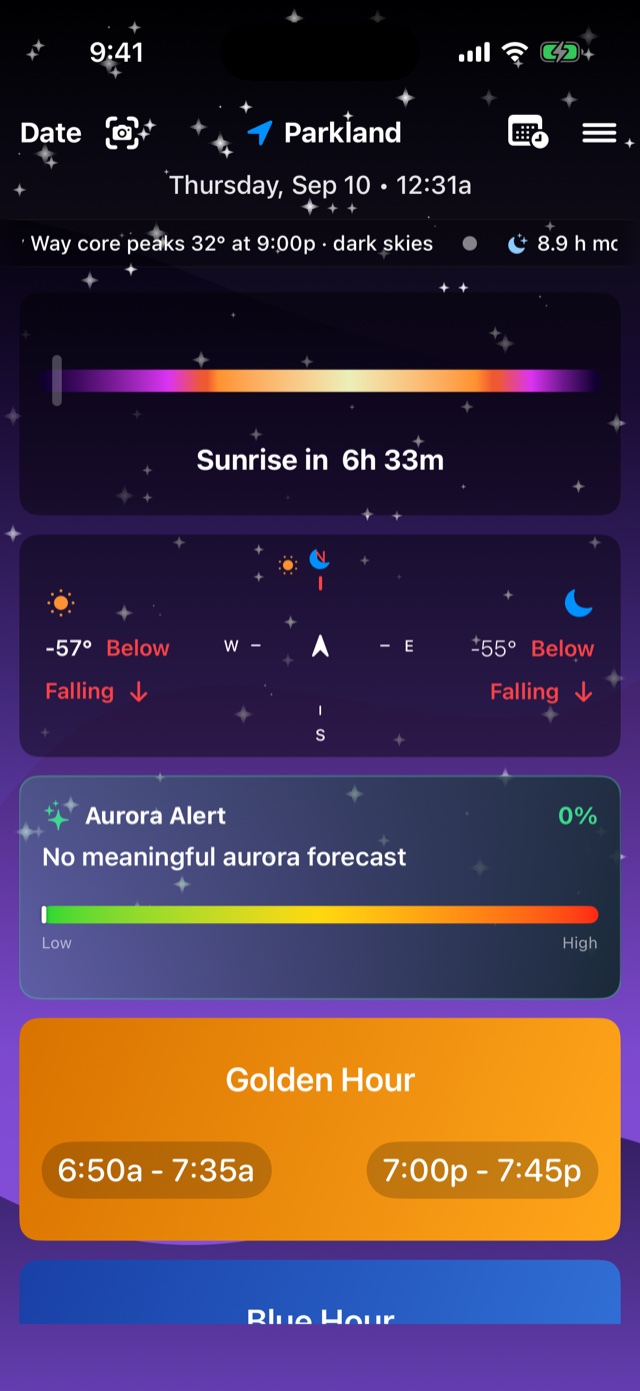
Scroll down from the home panel. Tap any card to expand it. You can choose which cards show, and in what order, in Settings.
Sunrise / sunset countdown
Time to the next Sun event and a progress bar through the day.
Compass
Shows where the Sun and Moon are right now on a compass rose, with altitude and whether each is rising or falling. Expands to a 3D dome with cast shadows.
Aurora Alert
NOAA OVATION probability for your latitude with a low-to-high meter. Only shown when there's a meaningful chance.
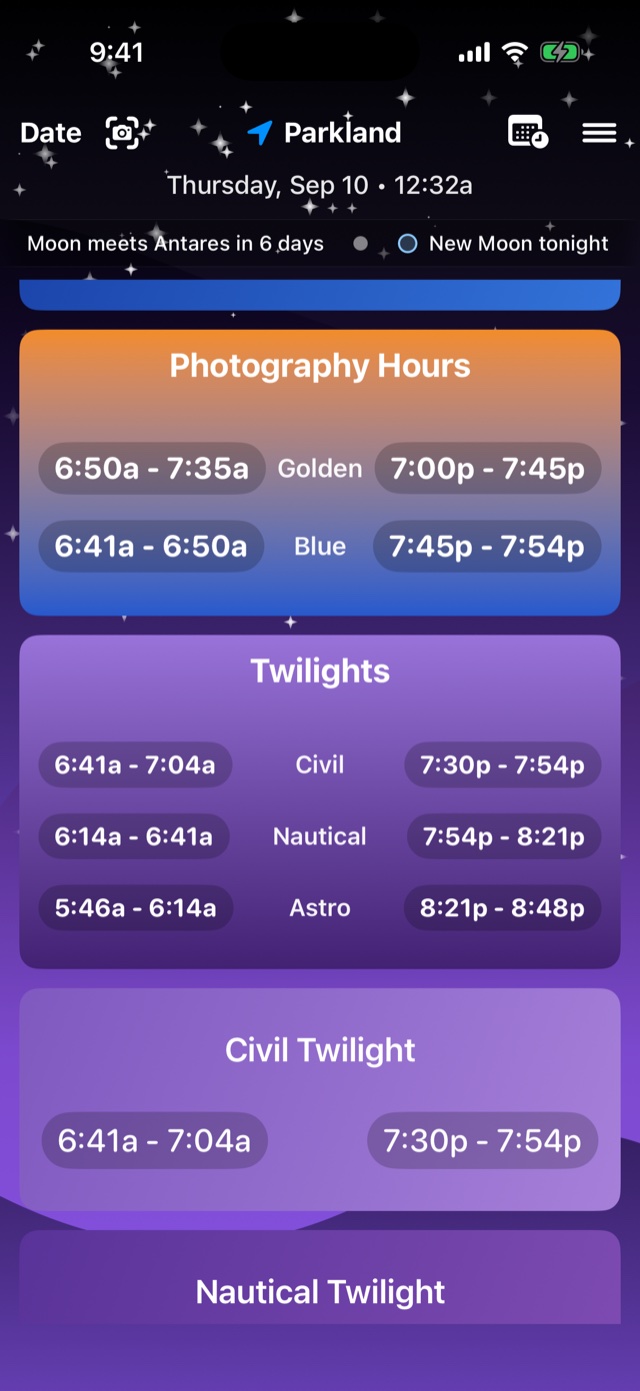
Golden Hour · Blue Hour · Photography Hours · Twilights
Morning and evening windows. Photography Hours groups golden and blue together, and Twilights lists civil, nautical and astronomical. "Next Twilights" and "Next Photo Hours" regroup them by what's coming next.
Photography Hours & Twilights
Every window as a time range. Golden hour starts when the Sun is 6° above the horizon and ends at sunset (or the reverse in the morning). Blue hour runs from sunset to the end of civil twilight, when the Sun is 6° below. Astronomical dark begins when the Sun reaches −18°.
Further down: Saved Plans, Weather, the Sun & Moon map, Solar System (a live top-down orbit map, and a 3D view with a time machine), the Day & Night map, Moon Atlas, Camera Tools and Moon Details.
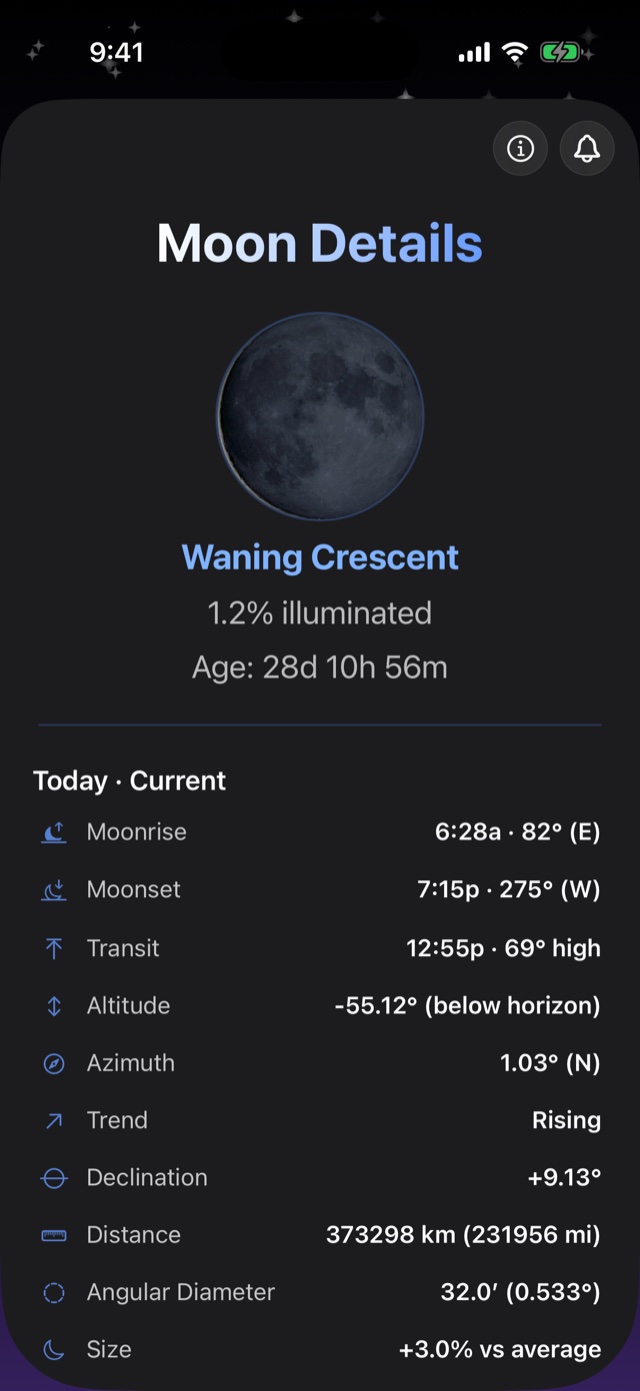
Moon details
The Moon card shows today's altitude curve, phase name, illumination, time to the next full or new Moon, and moonrise. Below it, the next four principal phases with dates and times.
Tap the phase card for Moon Details: age, illumination to one decimal, moonrise, moonset and transit with azimuths and the transit altitude, current altitude and azimuth, declination, distance, angular diameter and size versus average. Further sections cover the next events, upcoming phases, orbit (perigee, apogee, standstills), libration and the features on the terminator, and the next lunar eclipse with local visibility.
The bell sets a reminder for the next full Moon.
360° sky & AR
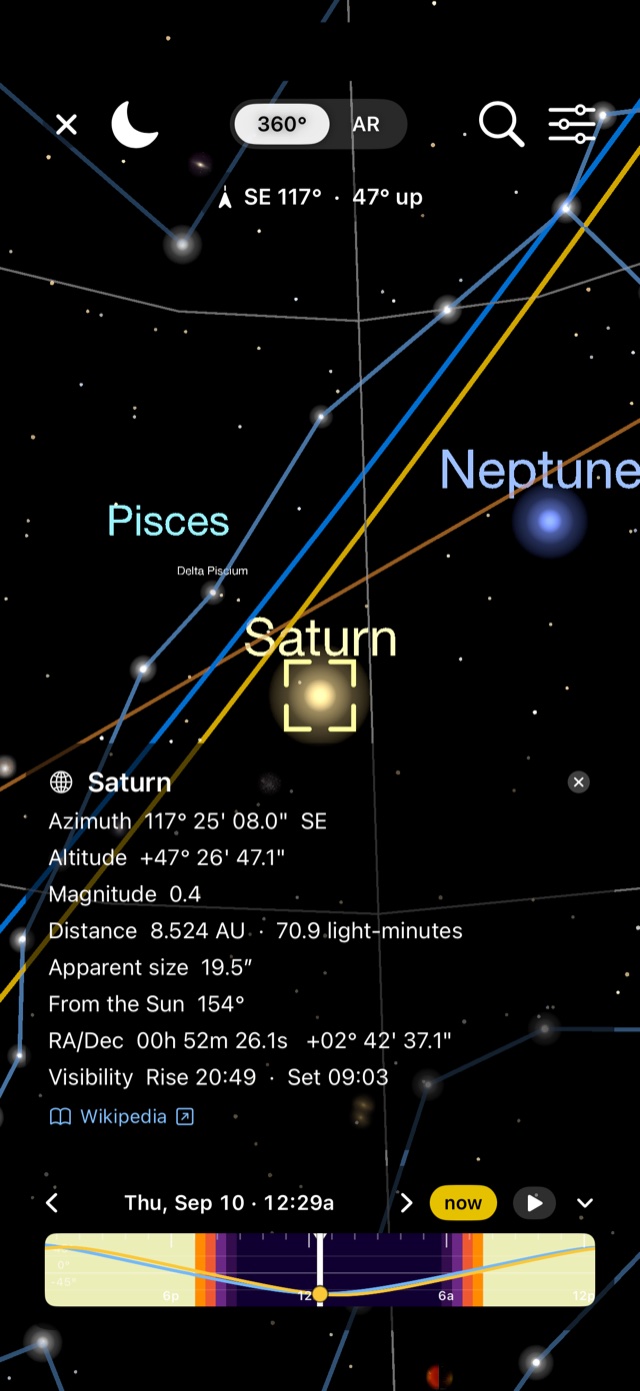
Look around: drag. Zoom: pinch, from a 110° field down to 0.05°, which is 2,200×. The readout under the toggle shows the direction and altitude you're looking at.
Search: the magnifier. Type a star, planet, Messier number, constellation or satellite. The view moves to it and selects it.
Tap anything for its card: azimuth and altitude, magnitude, distance, apparent size, elongation, RA/Dec, rise and set, and a Wikipedia link. Tap empty sky to deselect.
Time travel: the timeline at the bottom. Drag it, step with the arrows, or press play to run the sky in real time or faster. now returns to the present.
Night vision: the moon icon tints everything red so your eyes stay adjusted to the dark.
Layers: the sliders icon. Constellation lines and art, labels, the Milky Way, the ecliptic and meridian, deep-sky photos, satellites, the horizon and more. Each has its own density control.
Planner
Where: pan the map freely. The observer (the red pin) only moves when you press Observe from here, so looking around the map doesn't change your numbers. Tap a place name or the search icon to jump anywhere. The padlock freezes the controls to pan and zoom only.
When: set the date and time at the bottom. The arrows step by day, now returns to the present, best jumps to the best moment for the chosen subject. The timeline shows the Sun (amber) and Moon (blue) altitude over the twilight bands.
What: pick a chip (Sun, Moon, Milky Way, a planet). Each draws its path across the map through the day, with hour marks. The bright dot is the current position.
Camera
Turn on Camera and pick a body and lens. The wedge is your field of view, and the readout shows the angle, hyperfocal distance and what's sharp. With the Moon selected, the planner labels where to stand for a given Moon size and what fraction of the frame it will fill. Pin drops a subject marker. The green line is the alignment from you to it.
View · Layers · Satellite · Times
View adjusts what's drawn on the map (paths, hour marks, shadows). Layers adds light pollution, cloud cover, the Milky Way and more. Satellite switches the base map. Times lists every event for the day at that spot.
3D
The 3D button turns the map into terrain so you can see what the hills around your spot will block.
Sky events & Milky Way nights
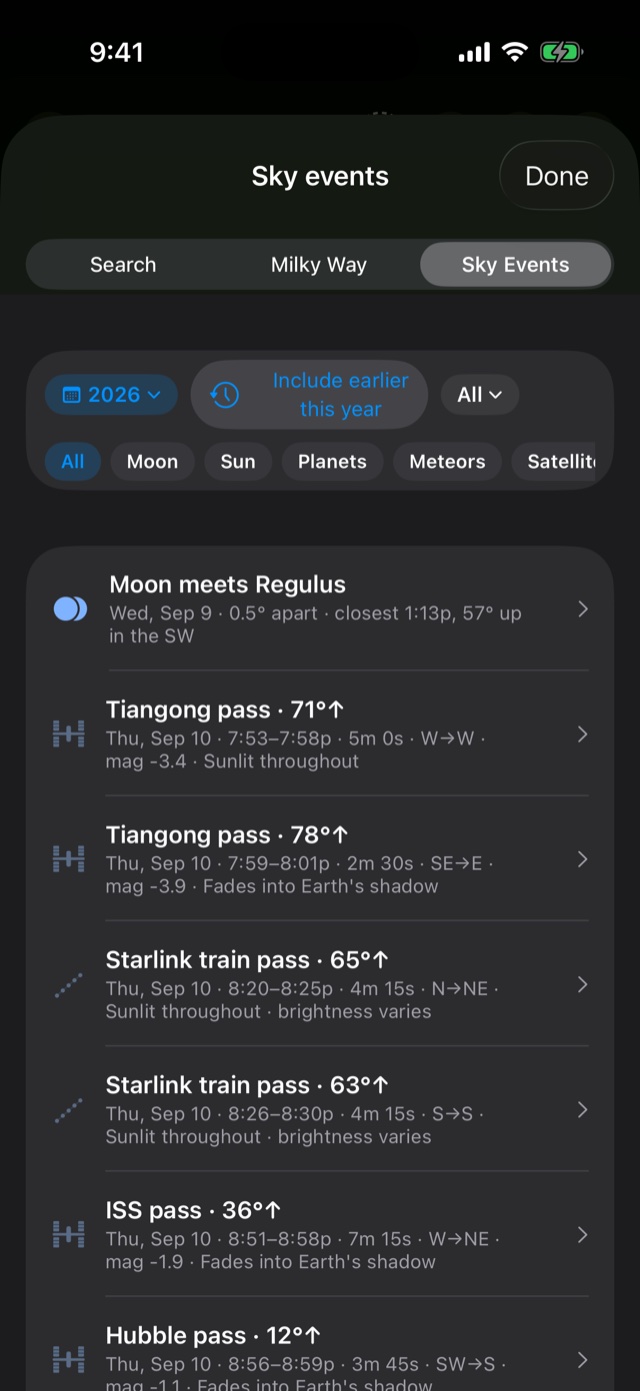
In the planner, tap the magnifier, then Sky Events. Filter by year and by kind: Moon, Sun, Planets, Meteors, Satellites, Comets, Aurora. Each row says what, when, where in the sky and how bright. Tap one to load it into the planner. Passes that won't be visible (daylight, Earth's shadow, too low) are listed dimmed when Show non-visible overflights is on.
Milky Way ranks the next 45 nights for shooting the galactic core. The score weighs hours of true darkness, Moon interference, how high the core climbs and cloud cover. Sort by best, date, Moon or dark hours. Tap a night to plan it.
Weather
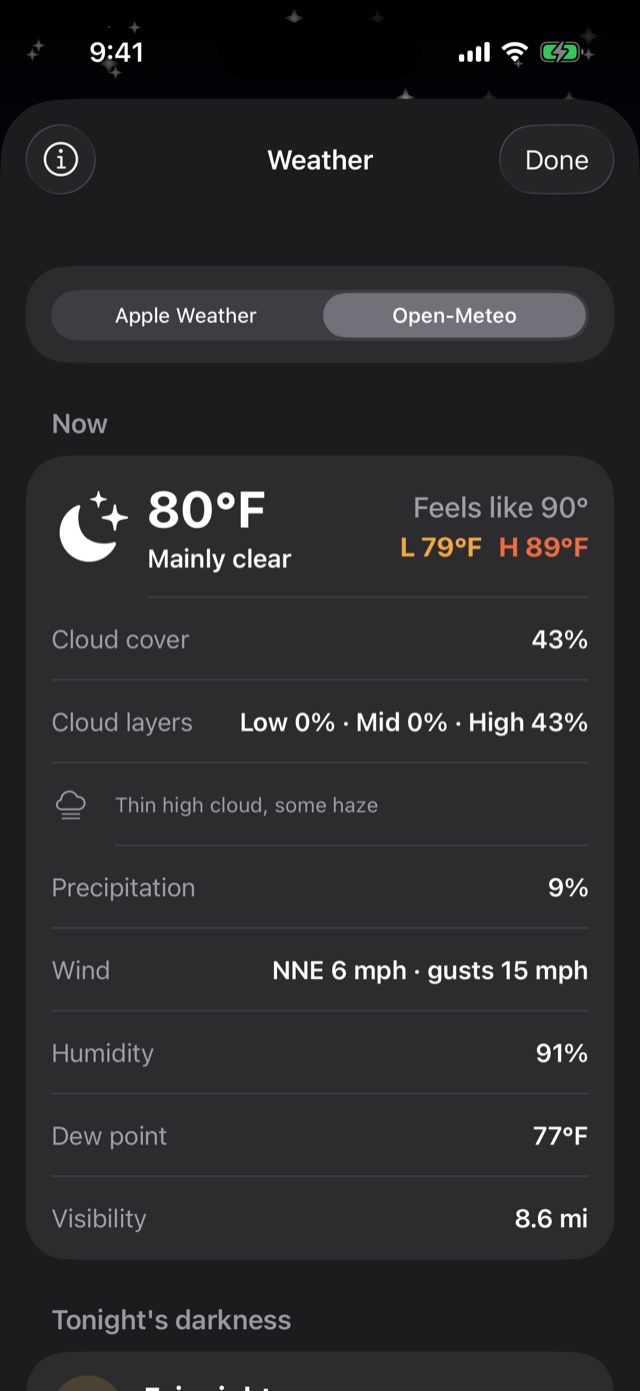
The Weather card shows now and tonight. Tap it for the full sheet: cloud cover, the cloud layers (low, mid, high) and a transparency note, precipitation, wind with gusts, humidity, dew point and visibility, then Tonight's darkness with a stargazing score.
Choose Apple Weather or Open-Meteo at the top. Forecasts are cached, so you still have the last one when you're out without a signal. Forecasts come with a Pro subscription. Lifetime owners can add them with the Weather Pass.
Sky ticker
The line scrolling under the date shows tonight's highlights in ranked order: golden hour countdowns, tonight's moon-free dark window, when the Milky Way core peaks, the Moon phase, and the nearest events (passes, conjunctions, meteor peaks, oppositions). It updates every minute. On the Mac it also runs along the bottom of the planner and, optionally, in the menu bar. Turn it off in Settings → Display → Sky Ticker.
Plans & reminders
In the planner, the bookmark icon saves the current place, date and subject as a plan. Saved plans appear on the home screen with their countdowns, and reopen where you left off. Plans can be exported and imported.
The bells on cards set reminders before golden hour, a full Moon, a pass or an eclipse. Reminders need notifications allowed for the app.
Settings & Pro
Settings (in the menu on iPhone and iPad, or ⌘, on the Mac) cover time format, units, which cards show and in what order, the date header, the sky ticker, background style, the weather provider, and reminders.
Free covers today for any place you choose. Pro adds any other date, favorite and recent places, unlimited plans, camera tools and live forecasts. Lifetime gives you everything except forecasts, and Lifetime owners can add them with the Weather Pass. Purchases are made through Apple and restored with Restore Purchases on any device signed in with the same Apple Account. See the FAQ.
Troubleshooting
Objects don't line up in AR
Metal, magnets, cases with magnets, cars and buildings can all throw the compass off. Step away, move the device in a figure-eight for a few seconds, and try landscape. Make sure Compass Calibration is on in iOS Settings → Privacy & Security → Location Services → System Services. Azimuths in the app are true north. The device heading is corrected for magnetic declination automatically.
Times differ from another app or website
Most differences come from definitions, not errors. Apps differ on whether "sunrise" is the upper limb or the centre of the disc, whether refraction is included, the observer's elevation, and the time zone used for the place versus your device. Still Dark reports apparent positions, which include refraction and, for the Moon, parallax. It finds rise and set by scanning for the actual altitude crossing instead of using the common quick approximation, which can be a minute early. Rise and set assume a sea-level horizon, so hills and buildings aren't included.
A satellite pass I expected isn't listed
Orbit data is refreshed from CelesTrak and is only reliable for about two days either side of its epoch, so passes more than a couple of days out aren't predicted. Open the app with a connection to refresh.
The weather card is empty
Forecasts need a Pro subscription, or Lifetime with the Weather Pass, and a connection for the first download. After that the last forecast is cached. Try the other provider in the weather sheet.
Reminders stopped
Check iOS Settings → Notifications for the app, any Focus mode, and Background App Refresh.
Nothing computes / the app shows the wrong place
Allow location, or search a place and select it. If the location name is red in the header, the app is showing a selected place, not your current one. Tap it to switch.
Report a problem
Email support@stilldark.app with: your device and OS version, the app version (Settings → About), the location and date/time you were looking at, what you expected and what you saw. A screenshot helps. For a wrong prediction, include the source you compared against.